What’s new?
If this is your first time using our REST API you can skip directly to the Authentication keys: Login and App section.
With the growth of our application requirements, we had the need to introduce a User & Access Management system, so that we can properly manage customers, users, and their accesses.
We have now more flexibility when creating new users and providing them accesses, so that each user can:
-
be assigned to multiple customer accounts
-
issue authentication keys for 3rd-party applications
-
have different roles for different customer accounts
Most part of these changes are handled on our side, and all the user and customer management can be done in the Volantis Digital Dashboard.
These were the key changes. In the next section we explain what you should change when using our REST API.
Please note that these are breaking changes.
Changes from previous authentication process
In the new version of the REST API we introduce authentication keys to support new requirements. This is further discussed in the Authentication keys: Login and App section.
The /authenticate endpoint was kept, but now you must provide the auth_key query parameter with a UUID value.
As a response you will receive the Json Web Token in the Authorization header already with the prefix set. The prefix has changed to Bearer <JWT> instead of "JWT <JWT>", making it agnostic of the token implementation.
You can expect different content in the response body depending on the authorization key type you’re using. This is shown in the Authentication keys: Login and App section.
Authentication keys: Login and App
Our REST API can be accessed now by two types of authentication keys: Login and App.
Login
This type of key is handled by the Volantis Digital Dashboard and is sent to user’s e-mail address when logging in. Every user has a single login key that provides access to all customers associated to the user.
Login authentication keys should not be used by 3rd-party applications. As developer, use App keys instead.
App
App authentication keys are suitable be used by 3rd-party applications, because:
-
they only provide access to the data of a single customer, while the owner may have access to multiple customers
-
their ownership can be transferred to another user from the same customer
-
they can have different roles, hierarchically equal or inferior to the owner’s role
-
they can be deleted anytime, without their owner losing access to the customer
How to
Get a login auth key
The login authentication key is created along with the user access to a given customer. It’s sent to the user’s e-mail address (as a magic link) when the user tries to login the Volantis Digital Dashboard.
Get an app auth key
An app authentication key can be created in the customer panel of the Volantis Digital Dashboard.
Open the menu panel and click on the Access management option. Below in the page, the section App keys must be available, like in the following image.
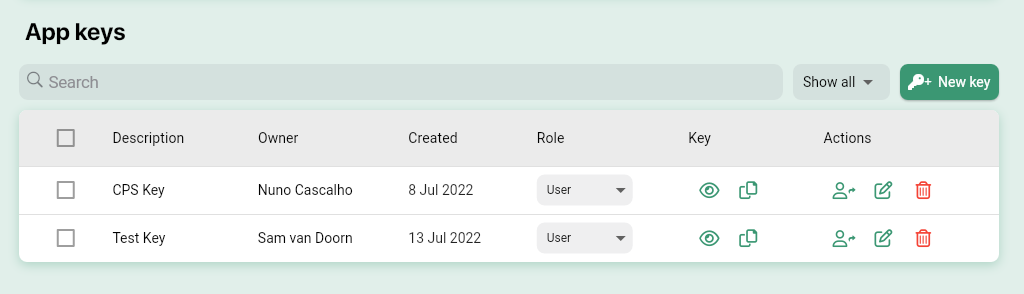
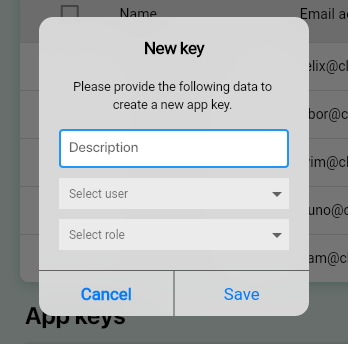
To create a new App Key, click the New key button. In the pop-up modal, fill a description, select the user that should own it, and select the required permission level. With User permission, measurements, devices, locations and zones can be retrieved, but not changed. The Admin role has permission to change such items, but can also manage users.
This panel also allows edit, remove or transfer the ownership of the key.
Get an authentication token
To get an authentication token you must call the GET /authenticate endpoint with the auth_key query parameter. The token returned is a Json Web Token, which you need to send to every other secured endpoint.
See the example bellow:
Request
curl --request GET 'https://api.volantisdigital.nl/authenticate?auth_key=bb534a21-c914-4cd6-8b47-407771970daa'
Response
The token can be found in the Authorization header and looks like the following:
Bearer eyJ0eXAiOiJKV1QiLCJhbGciOiJIUzI1NiJ9.eyJleHAiOjE2NTI0NDM1MDQsImlzcyI6ImNsYWlyaWZ5IiwiYXVkIjoiY2xhaXJlIiwiaWRlbnRpdHkiOiJDdXN0b21lciAxIiwicm9sZXMiOlsiUk9MRV9VU0VSX1ZJRVdFUiJdLCJhdXRoX2lkIjoiN2IwMzE1NDAtN2Y0MC00MjU4LThmNWMtZjEzMjFkMTMzNTg3In0.nq5ASn0uIK5emms4NSmKQbFnzdkjpt68jXjTzo98-DA
The following response body schema is returned when the authentication key used is of type login. It provides information about the customers assigned to the user.
[
  {
    "id": "88c567df-4d48-4728-8822-671e4a2c1659",
    "name": "Customer 1",
    "logos": {
      "ORIGINAL": "/static/bcfa7c58-b1c7-4e86-9b6a-5549cb74409d.jpg",
      "THUMB_XS": "/static/22c6a4ac-6d2d-476b-866b-75b791640fe0.jpg",
      "THUMB_S": "/static/e7223676-839a-432b-885b-c4a3d48d0b1a.jpg",
      "THUMB_M": "/static/27007f84-f1a6-497a-af6e-ca7cfd3762a8.jpg"
    },
    "modules": [
        {
            "name": "comfort"
        },
        {
            "name": "energy"
        }
    ]
  },
  {
    "id": "10329153-4c96-4331-8b54-62aa8b3d0b9c",
    "name": "Customer 2",
    "logos": {
      "ORIGINAL": "/static/02f2dc75-1d26-40cf-8009-30a5c30ee715.svg"
    }
  },
  {
    "id": "4bffb2d8-5047-498f-887f-5b1eeaab4cef",
    "name": "Customer 3",
    "logos": {},
    "modules": [
        {
            "name": "energy"
        }
    ]
  }
]
If the provided authentication key is an app key, it will return the following response body.
{
    "access_token": "eyJ0eXAiOiJKV1QiLCJhbGciOiJIUzI1NiJ9.eyJleHAiOjE3NTgwMjUzMzgsImlzcyI6ImNsYWlyaWZ5IiwiYXVkIjpbImNsYWlyaWZ5Il0sImlkZW50aXR5IjoiQ2xhaXJpZnlMb2NhbCIsImNpZCI6IjlkMjYyZjg3LTAyN2UtNDA4Yy1hM2VlLWFhMDdiZDhlNjBiNSIsInJvbGVzIjpbIlJPTEVfVVNFUl9WSUVXRVIiXSwiYXV0aF9pZCI6IjlmMzAxMDVkLTNmNTgtNDVhMC04ZTk0LTM2ZGVhMGU5MzEyNiJ9.XMwZUwzJC7oP93qAUSui1Ilg486FpECtp70F6AuPxaY",
    "token_type": "Bearer",
    "expires_in": 900
}
The customer in context is specified inside the token with the field cid, and the default customer is the one assigned firstly to the user.
In the next example, we use the cid query parameter, the customer id of Customer 2 to change the customer in context.
Request
curl --request GET 'https://api.volantisdigital.nl/authenticate?auth_key=bb534a21-c914-4cd6-8b47-407771970daa&cid=10329153-4c96-4331-8b54-62aa8b3d0b9c'
Response
The token found in the Authorization header again is now the following:
Bearer eyJ0eXAiOiJKV1QiLCJhbGciOiJIUzI1NiJ9.eyJleHAiOjE2NTI0NDM1MDQsImlzcyI6ImNsYWlyaWZ5IiwiYXVkIjoiY2xhaXJlIiwiaWRlbnRpdHkiOiJDdXN0b21lciAxIiwicm9sZXMiOlsiUk9MRV9VU0VSX1ZJRVdFUiJdLCJhdXRoX2lkIjoiN2IwMzE1NDAtN2Y0MC00MjU4LThmNWMtZjEzMjFkMTMzNTg3In0.nq5ASn0uIK5emms4NSmKQbFnzdkjpt68jXjTzo98-DA
The response body returns the same information as the first example.
Now, when you request a list of Locations, you will receive the locations of Customer 2.